Tasks - Linked Purchase Orders
YMS allows Tasks and Purchase Orders to be linked together, making it easier to identify Tasks that are waiting for parts, materials, or services to be ordered and delivered before the planned work can be completed.
 Viewing Linked Purchase Orders
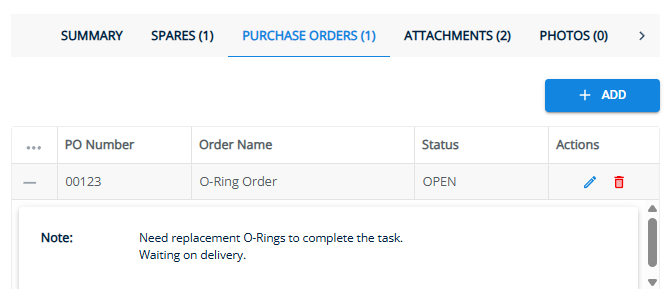
When a Task has one or more linked Purchase Orders, a Shopping Cart icon is displayed in the Task grid.
To review the linked Purchase Orders:
Select the required Task to open the Task drawer.
Navigate to the Purchase Orders tab.
From this tab you can review the Purchase Orders currently linked to the Task.
 Linking a Purchase Order to a Task
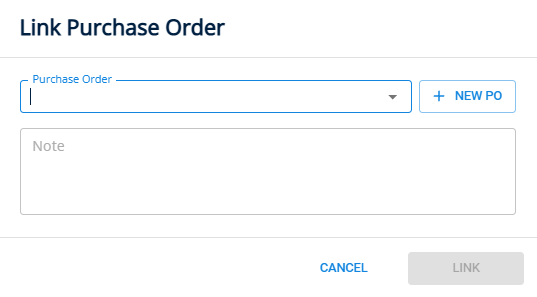
To link a Purchase Order to a Task:
Select the required Task to open the Task drawer.
Navigate to the Purchase Orders tab.
Select Add.
Select an existing Purchase Order from the dropdown list.
Alternatively, select “+ New PO” to create a new Purchase Order and link it to the Task.
Add an optional note explaining why the Purchase Order is linked to the Task.
Save the link.
 Editing a Link
To update the note against an existing link:
Select the required Task to open the Task drawer.
Navigate to the Purchase Orders tab.
Select Edit against the required Purchase Order.
Update the note.
Save the changes.
 Removing a link
To remove a Purchase Order link:
Select the required Task to open the Task drawer.
Navigate to the Purchase Orders tab.
Select Delete against the required Purchase Order.
Deleting a link does not delete the Task or Purchase Order, it only deletes the relationship between them.